

How to Set Up a Digital Planner in GoodNotes

GoodNotes is the most popular app for digital planners — and the first ten minutes with it are the only hard part. Import the file wrong and nothing looks right; skip the settings and your handwriting looks like a spider's resume.
This guide gets you from "downloaded a ZIP" to "actually planning" in one pass. It takes about ten minutes.
Before you start
You need three things:
- GoodNotes installed on your iPad (or iPhone/Mac — it works on all three).
- The PDF version of your planner. GoodNotes imports PDF files, not HTML ones. If your download included both formats, use the PDF for GoodNotes and keep the HTML version for typing in a browser. (PDF vs HTML explained if that sounded like gibberish.)
- The Files app. Your planner probably arrived as a ZIP — unzip it first so you have the actual PDF sitting in Files.
That is the whole shopping list.
Step 1: Import the planner into GoodNotes
Two ways, both fine:
Option A — from GoodNotes:
- Open GoodNotes and tap the + (new document) button.
- Choose Import.
- Find your planner PDF in Files and tap it.
- Choose Import as a single document when asked. This keeps all the pages together as one notebook.
Option B — from the Files app:
- Open Files and locate the PDF.
- Tap the share icon.
- Choose GoodNotes from the share sheet.
- Pick the notebook you want it in (or create a new one).
Either way you end up with your planner as a notebook, ready to use. Give it a name you will recognize in six months — "Planner 2026" beats "Untitled 47."
Step 2: Check the navigation tabs
A hyperlinked planner has tappable tabs: monthly index, weekly spreads, notes, and so on.
- Open the planner's index or dashboard page.
- Tap any tab — it should jump straight to that section.
- If nothing happens, make sure you imported the complete PDF (some downloads include separate files per section) and that you are tapping with your finger or stylus tip, not the side of your hand.
If your planner came with an HTML version too, you will notice the links work identically — tapping in GoodNotes, clicking in the browser.
Step 3: Set your handwriting and display settings
Five minutes here makes every page feel better. In GoodNotes, open Settings (the gear icon) and check these:
Palm rejection — ON. Rest your hand on the screen while you write. Without this, every stroke becomes a smear. If you use an Apple Pencil, GoodNotes only draws from the Pencil by default, which is what you want.
Zoom Writing — ON. This keeps your handwriting the same size no matter how far you zoom in, so notes written on a small phone screen still look normal on the iPad.
Pen thickness and color. Go one size thicker than feels natural on screen — digital ink renders thinner than paper ink. Dark gray or black reads better than pure black on most templates.
Paper template — set to "None" or "Transparent" for planner pages. If GoodNotes draws its own lined background over your planner, the lines fight.
Screen brightness down slightly. Glare on glass makes long writing sessions tiring, and a slightly dimmer screen hides fingerprints.
None of this is mandatory, but skipping it is why digital planning "feels off" for some people.
Step 4: Back up your planner
Your planner file is replaceable — it is a download. Your writing is not.
GoodNotes syncs through iCloud automatically if iCloud Drive is enabled, which covers most disasters. For extra safety:
- Open the notebook, tap the share icon.
- Choose Export → PDF.
- Save a copy to Files or another cloud folder every month or after big planning sessions.
Two copies of the file, one copy of your writing. That is enough.
Troubleshooting the three common problems
"The tabs don't jump anywhere." You are probably in a PDF reader that strips links, or you imported a preview file. Open the planner in GoodNotes itself and try again. Still dead? Email us the file name and we will check it.
"My handwriting looks tiny/ugly." That is Zoom Writing and pen thickness (Step 3), not the planner.
"The pages are the wrong size." Planners are designed for specific dimensions — A4 and US Letter are not interchangeable. Check which size your download includes and set your paper accordingly in GoodNotes display settings if everything looks cropped.
Start small
Do not try to fill every page tonight. Write today's three priorities on the daily page, tick one thing off the to-do list, and stop.
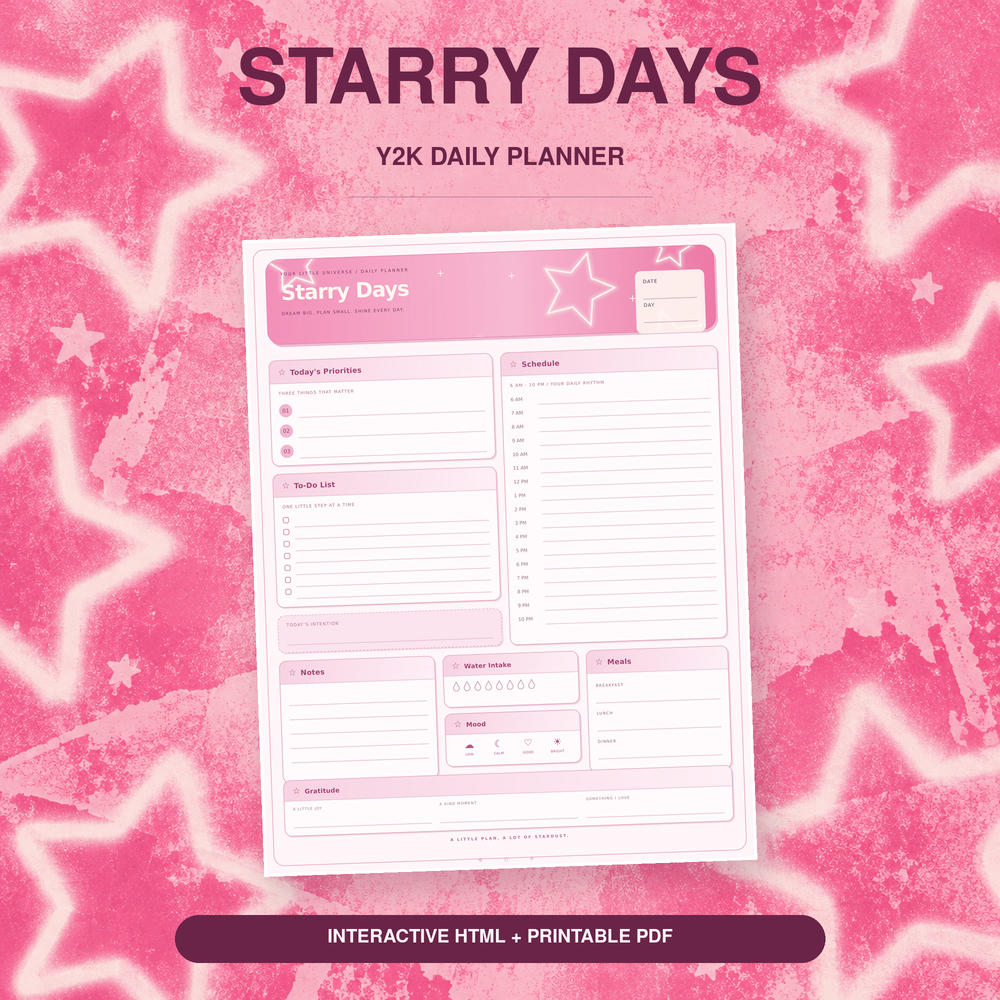
If you are still choosing between handwriting in GoodNotes and typing in a browser, the Starry Days Daily Planner is $5.99 and includes both formats — a cheap way to find out which way you plan. When you are ready for the full system, the Dream Loud Complete Y2K Planner Bundle has every page type in one download.