

How to Decorate a Digital Planner with Stickers

A bare planner page gets the job done. A decorated one gets opened.
The good news: decorating a digital planner is faster and cleaner than scrapbooking on paper — no glue, no scissors, no permanent mistakes. Undo is one tap. Here is the whole process.
What you need
- A note-taking app. GoodNotes or Noteshelf both work. This guide uses GoodNotes; the steps are nearly identical elsewhere.
- Sticker files in PNG format with transparent backgrounds. Transparency is what makes a sticker look like a sticker instead of a white square. PNG is the format to look for; JPGs have a solid background and will look pasted-on in the worst way.
- Your planner, already imported (setup guide here if you have not done this yet).
That is it. No design skills required.
Step 1: Get your stickers into the app
From the Files app:
- Save the sticker pack (usually a ZIP — unzip it) into Files or Photos.
- In GoodNotes, open your planner notebook.
- Tap the + button or the image tool, then choose Add Photo.
- Pick your sticker PNG.
The faster way — make a sticker sidebar:
- Create a new blank notebook and name it "Stickers."
- Import all your sticker PNGs into it, one per page.
- When decorating, open the Stickers notebook in split view next to your planner.
- Long-press a sticker → Copy → switch to your planner → Paste.
The copy-paste method means you never dig through Files again, and your favorite stickers are always one swipe away.
Step 2: Place, resize, rotate
Once a sticker is on the page:
- Move it by dragging.
- Resize with the corner handles — drag outward for bigger, inward for smaller.
- Rotate with two fingers, or the rotation handle if your app shows one.
- Delete by selecting it and tapping the trash. Nothing is permanent.
One tip that changes everything: resize with two fingers while dragging the sticker at the same time. Pinch out from where you want the sticker anchored, and it grows from that point instead of sliding off the page.
Step 3: Layer like a pro
Digital stickers stack in ways paper never could:
- Big background elements first — washi-tape strips along the top of the page, a large header graphic, a photo.
- Medium decorations next — small icons next to dates, section dividers.
- Tiny accents last — stars, dots, sparkles. These are the details that make a page look designed instead of stuffed.
If a sticker ends up under something it should sit on top of, most apps have a Bring to Front option in the element menu.
5 layout ideas that stay tidy
Decoration goes wrong when there is too much of it. These five patterns are hard to get wrong:
1. Corner anchor. One medium sticker in the top-left or top-right corner of the page, plus one tiny accent near the date. Done in fifteen seconds.
2. Header band. A long strip of washi tape across the top with the month or week written next to it. Instantly turns a blank spread into a titled one.
3. Icon bullets. Put a small icon before each to-do item — a book for study tasks, a droplet for water, a star for priorities. Functional and pretty at the same time.
4. Mood strip. Three to five small stickers in a row at the bottom of the page, chosen for how the day felt. A visual diary that takes no writing.
5. One big, rest small. If you want a hero sticker — a large graphic or photo — make it the only large element on the page. Everything else stays small. This is the rule behind almost every layout that looks professional.
Keep it readable
The planner still has to work. Two rules:
- Never cover a writing line or a checkbox. Decoration lives in the margins, headers, and empty corners.
- Stop one sticker earlier than you think. The best-decorated pages have breathing room. If you are unsure whether a sticker is one too many, it is.
And remember the undo button. Digital decorating is risk-free — try the bold version, and if it does not work, undo.
A starter pack, if you want one
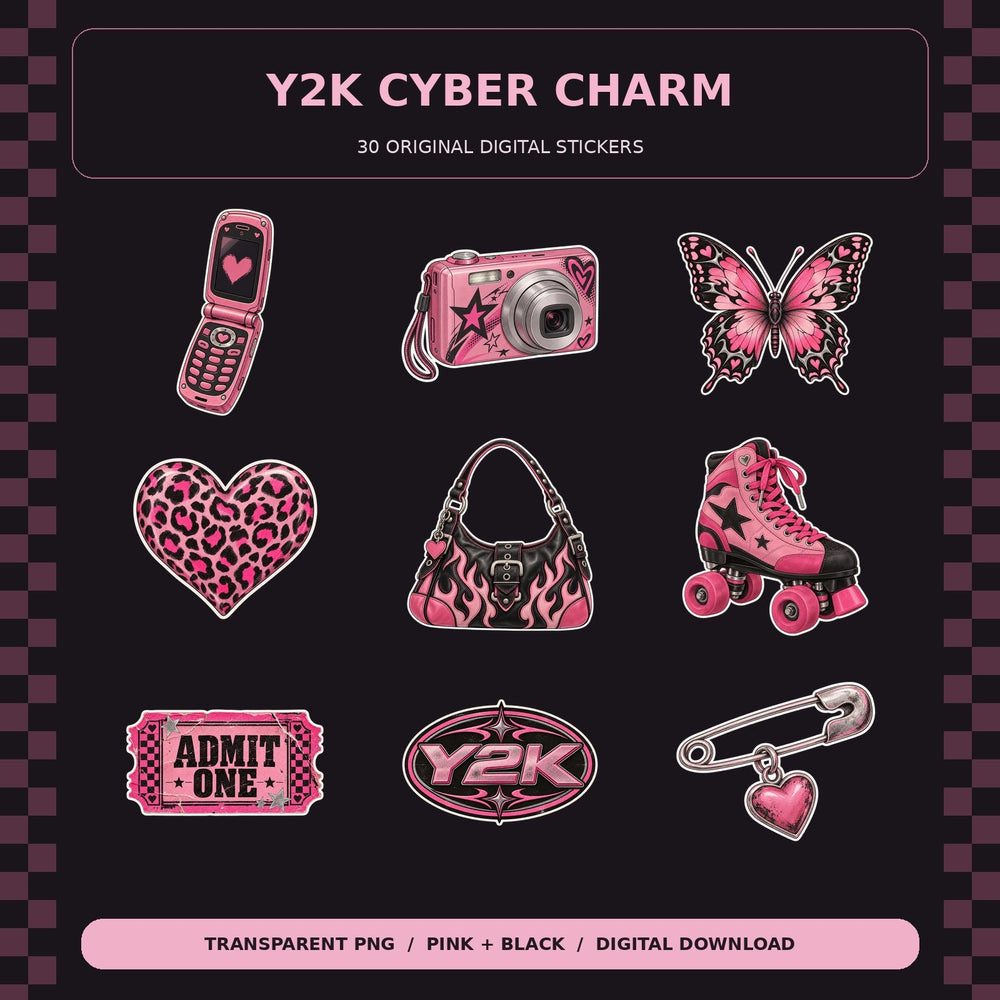
Decorating is more fun with the right stickers. The Y2K Cyber Charm Sticker Pack is 30 transparent PNGs — stars, hearts, arrows, and retro accents sized for planner pages — for $3.49, instant download.
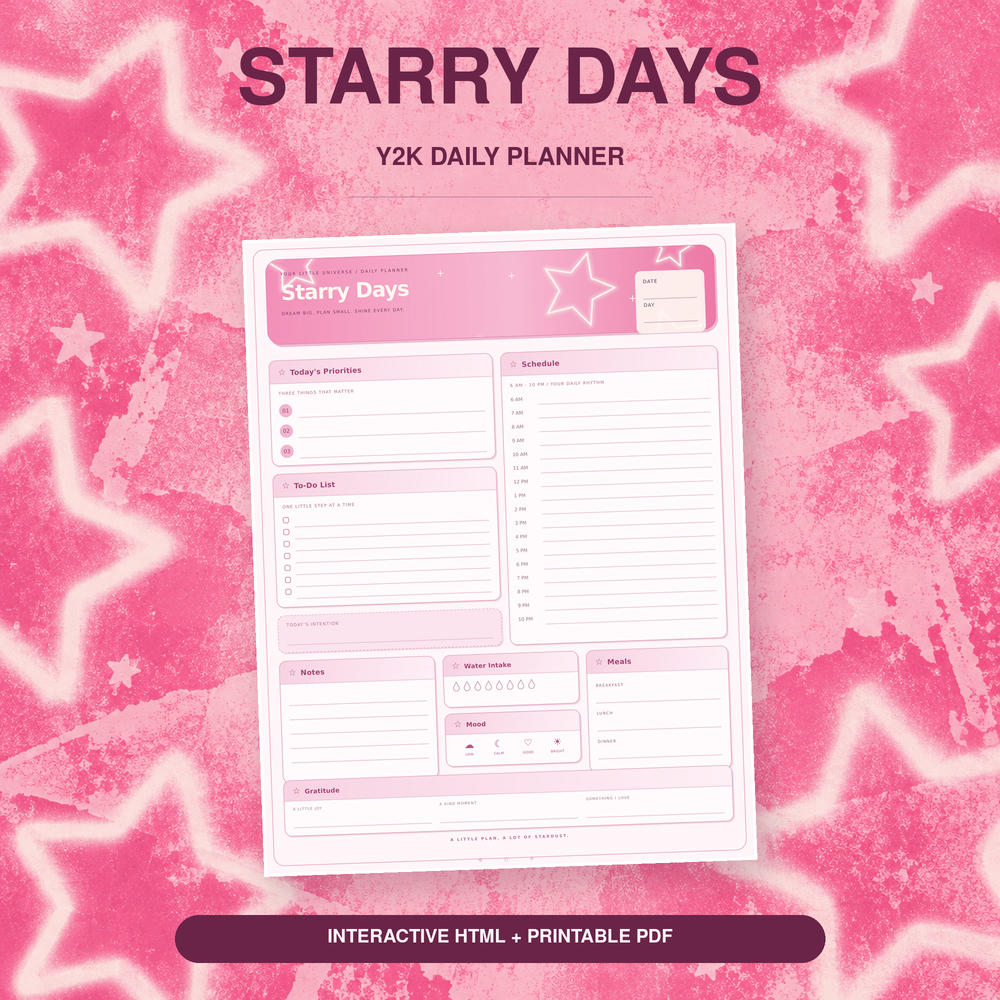
Using a planner that ships in both PDF and HTML? Decorate the PDF side in GoodNotes, where stickers live; the HTML side is for fast typing on the go.